
Ever wished you could make AI do the same task on every webpage without typing the same prompt again and again? Skills in Gemini in Chrome let you do exactly that. Save your most useful AI prompts and run them on any page with a single click: no retyping, copy-pasting, or starting over.
Built into Gemini in Chrome, Skills give you a library of reusable prompts and ready-made workflows for common tasks. Just save once and use it anywhere. Excited to learn what Skills in Gemini are and how to use them? Let’s dive right in!
What Are Skills in Gemini in Chrome?
Skills in Chrome is a feature introduced recently by Google on 14th April 2026. It basically lets you save your Gemini prompts in your Chrome browser. So, if you run a successful prompt, you can save and reuse it later as a shortcut for similar contexts, instead of retyping it. The feature is available in India as well, on any Chrome profile signed in with a Google account, with no waitlist or VPN required (checked on 22 August 2026).
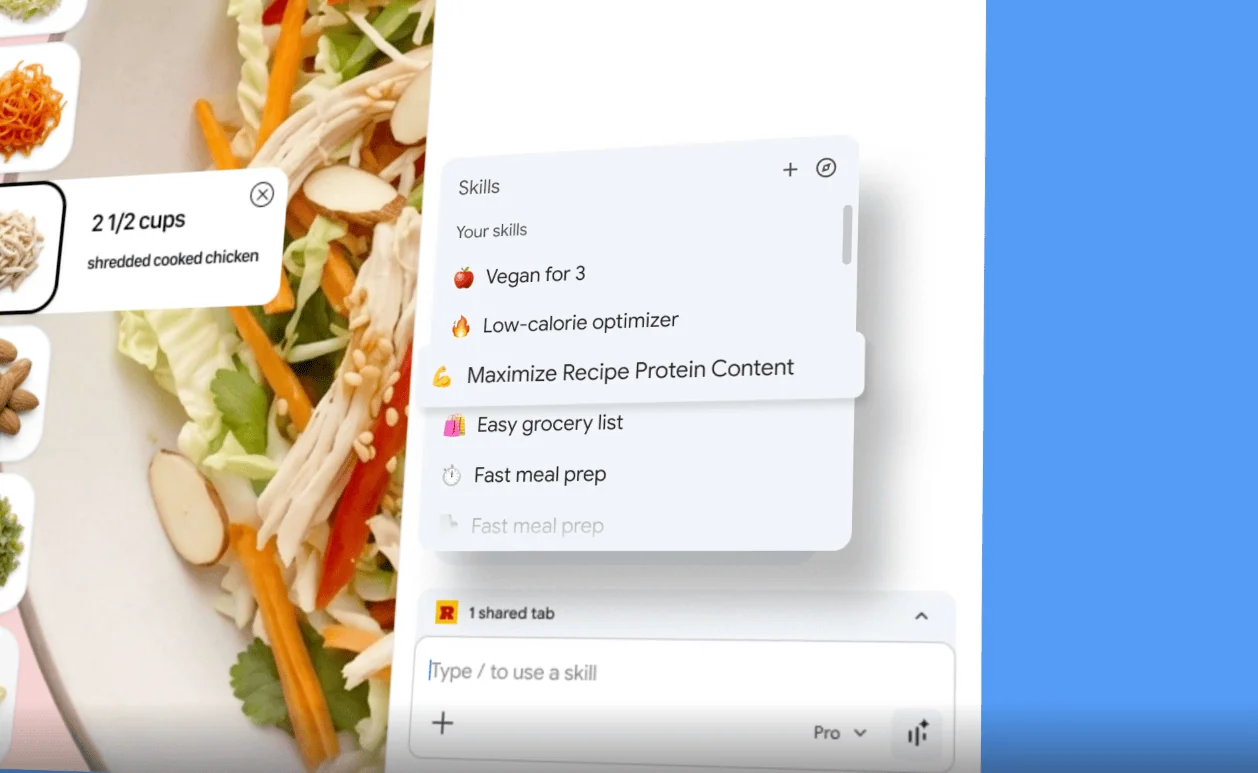
For example, every time you work with a lengthy document, you need to write a prompt for highlighting the key points. Instead of repeating this, you can create a Skill and run it whenever you have another heavy document! If you frequently work with repetitive tasks online, this will save you a lot of time!
Another thing to note is that there are two types of Skills: One-Page Skills and Multi-Tab Skills. One-Page Skills execute a saved prompt against the single page you are currently viewing. They are useful for tasks like article summarization, pulling important data, and rewriting specific content.
Whereas Multi-Tab Skills apply the same saved prompt to multiple open tabs in your browser. These are useful for tasks like product and pricing comparisons, competitor research, data aggregation, etc.
Your skills are basically saved on your Google account and synced across your devices. So you can use a skill you created on one device on any other devices too. Additionally, for sensitive actions (sending emails, adding calendar events, etc), Google Chrome asks for confirmation before executing these skills.
How to Access Skills in Chrome?
Step 1: Update Chrome

Skills are rolling out to Gemini in Chrome on desktop (Mac, Windows, and ChromeOS) for users with Chrome set to English (US). Make sure Chrome is updated to the latest version. Go to chrome://settings/help to check.
Step 2: Open Gemini in Chrome

Click the Gemini icon in the Chrome toolbar to open the Gemini sidebar in the Chrome side panel. If you haven’t set it up, sign in with your Google account.
Step 3: Browse the Skills Library
Type a forward slash ( / ) or click the plus sign ( + ) button in the Gemini chat window. This opens your Skills picker, where you can check both your saved Skills and the pre-built library. Browse the library to see what’s available.

Some popular examples in the library include protein macro calculation for a recipe, spec comparisons across multiple product tabs, scanning lengthy documents for key information, breaking down ingredients of a product, etc.
How to Use a Pre-Built Skill?
Let’s first try to understand how to use a pre-built skill from the library.
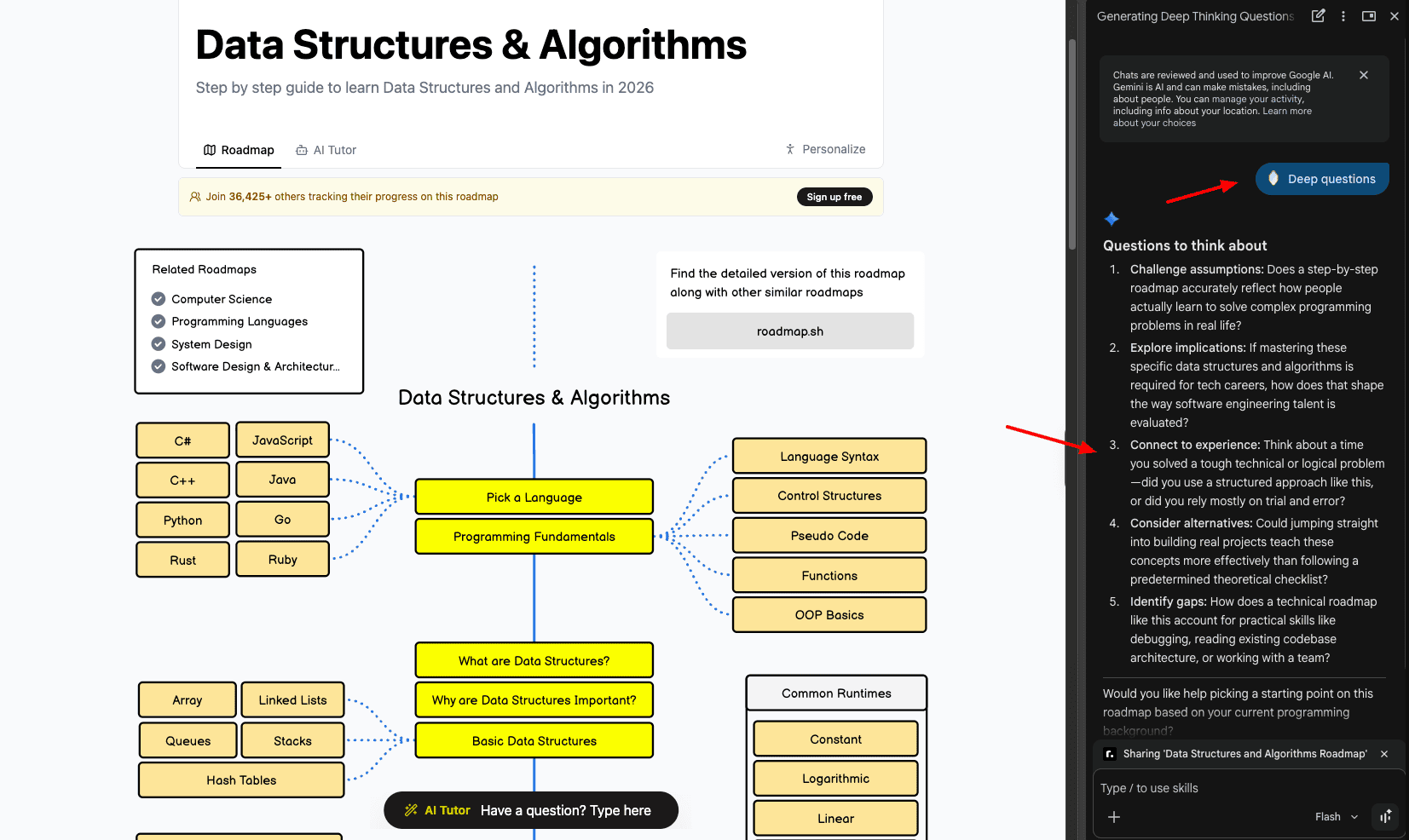
So, for example, you are browsing a website about data structures. You want to get more information about it. To do so, simply click on Ask Gemini. Then type (/) forward slash and write “Deep Question”.
This skill will return all the informative questions you could research to learn more about your topic.
How to Create Your Own Skill?
Now, if you want to create a custom skill for your use case, follow the steps below.

For instance, if I am browsing a phone website and want to know the specifications and pricing. So I can simply write the following prompt –
“Give me the specs of this phone along with the pricing.”
It returns the details. Besides the prompt, you can see the zap/lightning bolt icon. Click on it, give your skill a name, and save it. Now, whenever you visit another phone website, simply use the forward slash (/) symbol to use the skill.
Some Useful Gemini Skills You Can Create
| Skill | What it does | Where to run it |
|---|---|---|
| Grocery List from Recipe | Lists every ingredient, grouped into vegetables, dairy, pantry staples and spices, and flags anything hard to find | Any recipe page |
| Product Comparison Table | Compares your open product tabs on price, specifications, warranty and rating, then recommends the best value | Amazon, Flipkart or brand pages, several tabs at once |
| Simplify this news | Summarises the article in 5 plain-language bullets, then says who it affects and what to do about it | Any news article |
| Analyze this job | Pulls out responsibilities, must-have and nice-to-have skills and culture signals, plus 3 questions to ask in the interview | Naukri, LinkedIn, Indeed, company career pages |
| Simplify Terms & Policies | Highlights the 5 things that matter most, especially anything unusual, hidden or harmful to you | Terms, privacy or return policy pages |
| Summarize Research Paper | Explains the problem, the findings and how confident to be, in under 200 words | Journal articles, reports, long PDFs |
| Check Nutrition | Estimates calories, protein, carbs and fat per serving, and flags ingredients risky for diabetes, high BP or cholesterol | Recipe pages, food delivery listings, packaged food pages |
1) Grocery List from Recipe
If you regularly browse recipes and ingredient lists online, this skill will simplify things for you. Run the following prompt and save it as a ‘Grocery List from Recipe’ skill.

“Check this recipe and list all the ingredients I need to buy. Group them by: vegetables, dairy, pantry staples, and spices. Flag anything that’s unusual or hard to find.”
You can try this on any recipe page on food sites like Hebbar’s Kitchen, Archana’s Kitchen, or Sanjeev Kapoor’s website.
2) Product Comparisons
If your daily life revolves around researching multiple products and comparing their specifications, use this prompt and save it as “Product Comparison Table” skill.

“I have multiple product tabs open. Compare all of them on price, key specifications, warranty, and customer rating. Output as a table. Recommend the best value option.”
You can test it out by running it on multiple Amazon, Flipkart, or brand website tabs simultaneously.
3) News Simplification
Do you check the news on a daily basis? Then this skill will be a huge time saver! Use the following prompt and save it as the ‘Simplify this news’ skill.

“Summarize this news article in 5 bullet points. Use simple language. Then tell me: who does this affect, and what should I do about it (if anything)?”
You can try it out on any news article on The Hindu, Economic Times, NDTV, etc and get a short summary in bullet points.
4) Job Listing Analysis
Job seekers can use the prompt below as the ‘Analyze this job’ skill to get a complete overview of any particular job.

“Read this job listing carefully. Tell me: key responsibilities, must-have skills, nice-to-have skills, and what type of company culture this suggests. Then give me 3 questions I should ask in the interview.”
This skill can be tried on job portals like Naukri.com, LinkedIn, Indeed, and company career pages. Once you have the shortlist, here is how to prepare for the interview using AI.
5) Policy & Terms Simplification
This skill is for informed consumers who spend a lot of time reading policy pages of products. With this prompt, you can easily highlight the key points from any policy.

“Read these terms of service, privacy policy, or return policy. Highlight the 5 most important things I should know — especially anything that’s unusual, hidden, or potentially harmful to me as a customer.”
You can save this skill as ‘Simplify Terms & Policies’ and then test it on any website’s privacy policy or terms and conditions page.
6) Research Summaries
If you are a researcher, use the following prompt and save it as a ‘Summarize Research Paper’ skill. Then you can run it on any journal articles, reports, PDFs, and articles to easily understand them.

“This is an academic paper or long document. Summarize it in plain language: what problem it solves, what they found, and how confident we should be in the results. Keep it under 200 words.”
7) Nutrition Check
Health enthusiasts can try out the following prompt and save it as a ‘Check Nutrition’ skill.

“Read this food product page or recipe. Calculate approximate calories, protein, carbohydrates, and fat per serving. Flag any ingredients that are commonly problematic for people with diabetes, high BP, or cholesterol.”
They can use it on any recipe, food delivery app listing, or packaged food product page to check the nutrition of a product.
Are Skills in Chrome Free?
Yes, Skills in Chrome is available for free. Skills are a part of Gemini in Chrome, which is available to all Chrome users signed in to a Google account at no extra cost. You do not need a Google One AI Pro or Ultra subscription to use Skills, though if you want the paid tier anyway, here is how to get Gemini Pro free for 18 months in India. Here is what you can do for free:
- Save any AI prompt as a reusable one-click Skill.
- Access the pre-built Skills library for common tasks.
- Run Skills on the current page or across multiple selected tabs.
- You can access skills on all signed-in Chrome desktop devices.
- You get full edit access to update any Skill’s prompt at any time.
What are the Limitations of Skills in Gemini in Chrome?
1) Only English Supported
Skills in Gemini in Chrome currently only support English (US). I hope they will add support for other languages in the future.
2) Only Works on Desktop
Skills feature has been launched on Mac, Windows, and ChromeOS. While Google had announced Gemini integration for Chrome on Android in May 2026, no such feature has rolled out yet. If you want an assistant that keeps working when the browser is shut, that is a separate product: Gemini Spark, Google’s 24/7 AI agent, which runs on Google’s servers rather than in your tab.
Who Should Use Gemini Chrome Skills?
Gemini Chrome Skills are worth using for anyone who wants to save their productive time spent on rewriting the same prompts. I would specifically recommend it for the following users:

- Shoppers: Compare 5 product tabs at once across multiple devices.
- Students and Researchers: Summarize academic papers and articles in plain language.
- Health Enthusiasts: Calculate protein macros and nutrition for recipes without manual research or calculations.
- Professionals & Job Seekers: Analyze job listings and create tailored cover letter openings with saved skills.
- News Readers: Turn long or complex articles into simple five-bullet summaries with a ‘News Simplifier’ skill.
- Productivity Users: Extract key information from reports, meeting notes, PDFs, and other lengthy documents.
- Informed Consumers: Simplify terms of service and return policies to understand what you’re agreeing to in seconds.
Conclusion
Skills in Gemini in Chrome is a useful and time-saving feature for repetitive tasks. The ability to save your prompts, run them on multiple tabs, edit them anytime, and use pre-built skills can make your workflow really fast!
However, it currently supports English (US) and is only available on desktop. If you regularly shop online, read news, research, check job listings, nutrition, and work on lengthy documents, Gemini in Chrome Skills can save you from rewriting the same prompts.
Anyway, have you used Gemini in Chrome Skills yet? Which of these skills would save you the most time? Also, what skills have you created so far? Do share with me in the comments below. Cheers, and keep learning!


