
AI video is the hottest trend right now, and everyone’s rushing to pay for AI video tools. But do you know Google’s latest AI video model, Gemini Omni Flash, is free to try?
We can access Google DeepMind’s first any-to-any multimodal AI model without any extra rupees. You don’t need an API key, paid subscription, or any complicated setup. Just sign in and create professional-looking AI videos with synced audio.
In this guide, I’ll explain what Gemini Omni Flash is, its key features, and most importantly, how to use Google Omni Flash for free. Let’s start!
What is Gemini Omni Flash?
Gemini Omni is Google’s first any-to-any multimodal model introduced by Google DeepMind at Google I/O 2026. Gemini Omni Flash is the first release in this new “Omni” model family. It is designed for fast, native video generation with conversational editing. The model can understand text and work with images, audio, and video.

Veo 3, Google DeepMind’s other advanced AI video generator, mostly focuses on text-to-video generation. But Omni Flash supports multiple input types. The model generates a maximum of 10-second video clips. Every video output includes a SynthID watermark. Google Omni Flash is available to users on Google AI Plus, Pro, and Ultra.
Key Features of Gemini Omni Flash

Here are the standout features of Gemini Omni Flash:
1) Supports Multimodal Input
Google Gemini Omni can generate AI videos using multiple types of input at the same time. It understands text, images, audio, and video, so you can start with whatever you have.
2) Conversational Iterative Editing
The models understand natural conversation. Instead of starting over every time, you can simply tell the model what you want to change. For example, you can also preserve the parts you like and make precise edits to the subject, camera movement, style, motion, text, or audio.
3) Maintains Character Consistency
Omni Flash doesn’t alter the character across edits for consistent appearance. It’s really useful if you’re creating videos featuring the same person or brand mascot.
4) Built-in AI Watermarking
Every video generated with Gemini Omni Flash will include a SynthID watermark. You can’t disable this watermark as it helps identify the content as AI-generated, even after compression or re-uploading.
5) Synchronized Audio Generation
Gemini Omni Flash doesn’t produce silent video clips. Instead, it creates both visuals and sound together.
6) YouTube Shorts Integration
Gemini Omni Flash is integrated with YouTube Shorts and the YouTube Create App. So, creators can remix up to eligible videos using text prompts, images, or digital avatars.
How to Use Google Omni Flash for Free?
Step 1: Sign Up for Google Flow

Open Google Flow in your browser and click “Create with Google Flow” to sign up for a free account. If you already have an account, simply log in.
Step 2: Create a New Project
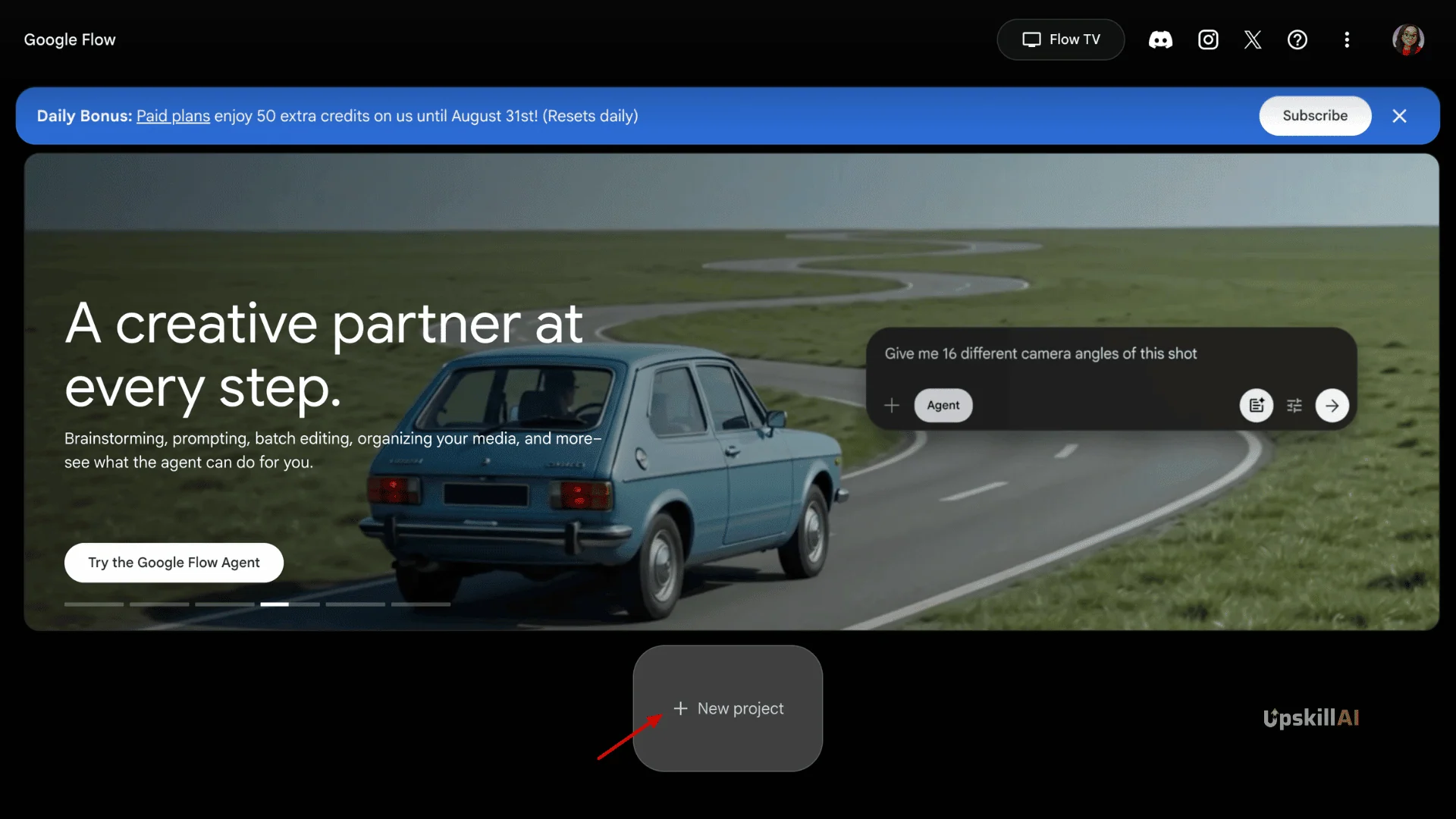
Click “+ New Project.” A new workspace will open.
Step 3: Upload Your Media

Click the “+” button on the right side below the page, then select “Upload Media.” Choose the video you want to edit.
Step 4: Enter Your Prompt

Once your media is uploaded, click on it. Now, type your prompt in the prompt box. For example, I wanted to replace the studio background with mountains.
Here’s my prompt-
Replace the purple studio wall background with a photorealistic, majestic mountain range in clear daylight. Adjust the ambient lighting on the man to match the bright, natural light of the outdoor mountain scenery, blending his hair and shoulder edges smoothly into the background with no harsh lines or halos.
Select Omni Flash as the model and press “Enter”.
Step 5: Generate the Video

The video is created within a few seconds.
Once it’s ready, you can continue editing it with additional prompts. For example, you can change the background, modify camera movement, update objects, or even edit the audio without starting over from scratch.

Demo Applications of Google Omni Flash Workflow
Example 1: The Complete Anime Shift

Prompt
Transform the entire video style into a crisp, high-quality modern anime art style. Retain the subject’s exact facial structure, beard shape, and hand gestures, but render the scene with vibrant cell-shading and sharp animated linework. Keep the original audio track completely unaltered.
Example 2: Interactive Floating Object

Prompt
Generate a small, glowing, semi-transparent 3D [object, e.g., smartphone / holographic globe] floating seamlessly right above the subject’s open hand. The object must track perfectly with the hand movements and cast a realistic colored glow onto the subject’s hand and face.
Example 3: Mid-Video Outfit Swap

Prompt
Modify the video to change the subject’s outfit from the original clothing into a [new outfit, e.g., premium black leather jacket over a white t-shirt]. The clothing must conform perfectly to the subject’s body contours and track their physical movements naturally.
Pricing and Access
Google Omni Flash provides 50 daily AI credits on Google Flow for free. But if you are creating an account for the first time, they’ll give a 100-credit one-time bonus. The credits don’t roll over. Each video content generation of 8 to 10 seconds will consume around 20 credits. So you can generate a maximum of 2 videos per day for free.
Developers with a Google account can access Omni Flash free through AI Studio. But there will be usage limits. If you want to generate videos without any limits or decide to continue after using the free plan, the best way to subscribe is to the Google AI Plus, Pro, or Ultra plan.
Google AI Plus will cost ₹399/month in India. And the Google AI Pro plan will cost around ₹1,950/month. In both plans, you get access to the Omni Flash video generation model without any limit.
Current Limitations
Gemini Omni Flash has some limitations as of now, which you have to keep in mind.
- Omni generates clips up to 10 seconds long. Longer sequences require multiple generations stitched together.
- The current Flash version generates 720p (1280×720) video. You can’t expect 1080p or 4K quality video output.
- Voice and speech editing have been intentionally withheld from the current release, likely for safety reasons around voice cloning and deepfake risks.
- Users can’t disable SynthID watermarks. Every output is watermarked at the model level. This is a policy decision, not a technical limitation.
- General developer API access is still planned rather than broadly available. For now, the Gemini app and Google Flow are the primary access points for most users.
- Omni and Veo 3.1 are separate products for different workflows. Veo remains the higher-quality, developer-first video model. Omni is the multimodal, chat-native creative tool.
Final Takeaway
Gemini Omni Flash is a real shift in how Google approaches AI video generation. Instead of launching just another text-to-video-only tool, it can work with text, reference images, audio, and existing footage all at once.
The best part is you don’t need a paid subscription to try it. With Google Flow, we can use Gemini Omni Flash for free. We can change backgrounds, create multi-scene videos, swap outfits, fix green screen footage, change video orientation, and much more.
That said, free access comes with some limitations. You’ll get usage limits and fewer features than the paid Google AI plan. If you’re experimenting, testing prompts, or making quick social content, the free tier is enough. But if you’re working on something production-grade, you can go for paid tiers.
Since Google is actively developing Gemini Omni Flash, its free-access rules are likely to change over the coming months. It’s a good idea to bookmark the official Google Flow page for the latest updates. We’ll also keep this guide updated whenever Google introduces new features or changes its free access policy.
FAQs
What can Omni Flash generate: video, images, or audio?
Gemini Omni Flash generates short AI videos. You can use text, images, audio, or existing videos as inputs, and the model creates video clips of up to 10 seconds.
Do I need a Google AI Plus or Pro subscription to use Omni Flash?
Not necessarily. You can try Gemini Omni Flash for free through Google Flow. But if you want higher usage limits and more features, you’ll need a paid Google AI plan.
How long can an Omni Flash video be?
At the moment, Gemini Omni Flash can generate videos of up to 10 seconds per prompt. If you need a longer video, you can create multiple clips and combine them using a video editor.
Can Gemini Omni Flash edit an existing video?
Yes. You can upload an existing video and describe the changes you want using natural language prompts. For example, we can replace the background, change the camera angle, or swap objects without starting from scratch.
Can the SynthID watermark be removed?
No. Every video generated with Gemini Omni Flash includes a SynthID watermark. Users cannot disable or remove it. The watermark helps identify the content as AI-generated.


