
What if your Mac could help you write better, clean up your photos, and even create custom emojis—just with a few clicks? That’s the power of Apple Intelligence, Apple’s big leap into the world of AI.
Apple announced Apple Intelligence at WWDC 2024, and now it has become an integral part of the ecosystem. Apple Intelligence makes your Mac smarter than ever. Whether you are a student or a working professional, you can have it your way.
In this blog, you’ll learn everything you need to know about how to use Apple Intelligence on Mac, its key features, like Writing Tools, Genmoji, Smart Mail, and Image Playground, along with its pros and cons. So, let’s jump right in.
What is Apple Intelligence?
With every brand releasing AI features, Apple is also not behind in the game. Last year, Apple introduced Apple Intelligence (their abbreviation for AI). Apple Intelligence is available for all Apple devices, including iPhone, Mac, and iPad.

Apple plans on integrating its AI features into its ecosystem to help users with their workflow. It completely changes the way users interact with their devices, thus making them more productive.
Apple Intelligence brings a lot of features to the table, including-
- Writing Tools
- Mail Summary
- Image Playground
- Genmoji
- New Siri powered by ChatGPT
These AI features are supported on all the Macs that are powered by the Apple Silicon chip (M1 or later), and are running on macOS Sequoia 15 or a later version. With all the AI features we saw last year, Apple plans to enhance them and bring more new features this year with macOS Tahoe 26.
Using Apple Intelligence Hands On Guide
How to Enable Apple Intelligence on Mac?
Before we talk about how you can use Apple Intelligence for your day-to-day tasks, let’s see how you can enable it.
Supported Languages & Regions
Currently, Apple Intelligence features are available only for the following regions and languages:
- English (Australia, Canada, India, Ireland, New Zealand, Singapore, South Africa, the UK, and the US)
- Chinese (Simplified)
- French (Belgium, Canada, France, Switzerland), German (Austria, Germany, Switzerland),
- Italian (Italy, Switzerland)
- Japanese
- Korean
- Portuguese (Brazil)
- Spanish (Chile, Mexico, Spain, US)
System Requirements
Apple Intelligence is available for all Macs (including MacBook Air, MacBook Pro, Mac Mini, etc) powered by the Apple Silicon chip, i.e., M1 or later versions.
To enable Apple Intelligence, your Mac must meet the following requirements:
1. Mac with an M1 chip or later.
2. Your Mac must be running on macOS Sequoia 15.1 or a later version.
3. Good internet connectivity is required to download all the tools.
Steps to Enable Apple Intelligence on Mac
Once you have ensured that your Mac fulfills the above requirements, you can follow these steps to enable Apple Intelligence on your Mac-
- Press Command + Spacebar key to open Spotlight Search.
- Here, search for System Settings, and then press the Return key to launch it.
- Now, on the left pane, click on Apple Intelligence & Siri.

- On the right, turn on the toggle next to Apple Intelligence.

- Now this will enable Apple Intelligence on your Mac.
- You will now see a message saying ‘Downloading Support for Apple Intelligence.’ So wait until it’s completed, and then you will be able to use all its features on your device.
Using Apple Intelligence: Real Examples
Apple Intelligence can be very useful on your work machine. From giving you a heads up on writing, to automating shortcuts to make your workflow easy, it can do everything. Here’s how you can put Apple Intelligence to use with your daily chores.
1. Writing Tools
You get Writing Tools with Apple Intelligence on your Mac. Apple Intelligence Writing tools help you with tasks such as proofreading or rewriting your mail, essay, or blog post. You can even summarize the text, convert it into key points, or a list. If that’s not enough, then you can even use it to compose anything for yourself.
As of now, Writing Tools only works with Apple’s proprietary apps like Notes, Mail, and Pages. To use writing tools, follow these steps:
- Select the part of the text that you want to change, like I have done in the image below.

- After this, hold down the Control key and then Left Click on the selected text.
- In the menu that opens up, click on Writing Tools.

- This will open up the Writing Tools Menu. Here you will see the following options:

- Proofread- Use this option to proofread text. This will fix all the grammar issues with your text.
- Rewrite- This will rewrite the text.
- Tone Shifting – You get three options here: Friendly (makes tone more friendly), Professional (makes tone more professional), and Concise (shortens the text).
- Summary- Gives you the summary of the whole text.
- Key Points- Convert the whole text into bullet points.
- Table- Creates a table from the given data.
- List- You can use this to make a list of the data in the text.
- Compose- Can be used to write a blog, an essay, or even mail, depending on the prompt you give.
- You can go with any of the options, but for now, let’s try to convert the text into Key Points.

So, here’s the text that I converted into key points using the Writing Tools.

2. Smarter Mail

Apple Intelligence is integrated into Mail as well. You get a summary of all your emails with just one click. Not only this, but all the important emails that need your urgent attention appear at the top automatically. That’s just not it, here are all the features that make Mail smarter with Apple Intelligence-
- Smart Reply- Based on the mail received, Apple Intelligence will generate an automated reply that you can send. You can get a reply to the whole email or to a particular part (like answering a question).
- Priority Messages- Some messages can be time sensitive and require your urgent attention. Mail app will sort the priority messages and display them at the top, so they are the first ones you look at.
- Summaries- Mail app can summarize the whole mail, so you don’t have to go through it all. Moreover, you can get summaries of the whole email thread.
All of that makes Mail smarter, plus you won’t have to spend much time reading or replying to mail when you should be focused on doing more important tasks. But how to use these features? The steps given below will guide you with it:
- Press Command + Spacebar key to open Spotlight Search.
- Search for Mail and press the Return key to launch it.
- Now, make sure you are logged into your email account before you go ahead.
- Once the Mail app launches, you will see all the Priority Mail at the top, if there are any.
- Click on an email to view.
- When you open Mail, at the top, you will see an option called Summarise at the top; click on it.

- This will summarise the mail in brief.

- Click on the Reply button to reply to the mail.
- When you choose to reply to the mail, you will get Smart Replies based on the content of the mail (like you can see in the image below).

3. Genmoji
If the default emojis you get on Mac aren’t enough for you, then you can create your own emojis with this feature called Genmoji. Just describe the emoji you want in a few words, and Apple Intelligence will create a unique and original emoji for you. You can even import a photo of a person to use as the inspiration for your Genmoji.
As of now, Genmoji only works with Apple apps like Notes, Messages, Mail, etc. Let’s see how you can use Genmoji-
- Click on the Launchpad icon on the dock, and open any of the supported apps. For this guide, let’s open the Notes app.
- Now, create a new note by clicking on the icon as shown in the image below.

- After this, open the Emoji Keyboard (by pressing Command + Control + Spacebar keys together).
- Now, click on the Genmoji icon as shown in the image below.

- After this, give the prompt to the emoji you want to create. For example, A dog wearing a party hat and goggles.

- Once you give the prompt, Genmoji will start generating emojis. You will see the results, like in the image below.

- You can navigate left or right to see more variations.
4. Focus Mode
There’s a new focus mode called Reduce Interruptions. This will basically mute and hide all the unwanted notifications on your Mac, just like DND. However, this will monitor all the important notifications like reminders about a deadline or a meeting, and will remind you about them.
Works just like other Focus modes (like DND), but you will still get important notifications if it really is urgent. You can enable Reduce Interruptions focus mode by following the steps below:

- You will see a list of all the Focus modes you can enable. From here, click on Reduce Interruptions to enable it.

5. AI Integration in Photos App
The Photos app is also better with Apple Intelligence. It now includes new features and tools to remove unwanted objects from the photos, organize your photos, or even create your memories.
- Natural Language Search- The search is now better with Apple Intelligence. You can now describe the photo or video you are looking for, and you will get the results exactly as you described. You can even search for actions within the video, and this will take you to that part of the video.
- Memories- With the Photos app, you can create your memories with photos and videos, and also include a song within them.
- Clean Up Tool- The Photos app now includes a Clean Up tool. With this tool, you can easily select and remove all the unwanted objects from the photos within a few seconds.
Here’s how you can use the new Photos app-
- Launch the Photos app on your Mac.
- You can use the Search bar at the top to search for the image/video.
- To use the Clean Up Tool, open any image you want to.
- Now, click on the Edit button.

Click on Clean Up.

Now, select the object you want to remove, and it will automatically remove it.
6. Smarter Siri + Spotlight
Apple Intelligence now integrates Siri with ChatGPT. Though Apple hints at many features to be rolled out for Siri, only a few of them work. Here are all the features that you get with the new Siri-
- Type to Siri- You can now type to Siri to ask questions. You can do the same tasks over the text prompt that you would have done by your voice command.
- Conversational Context– Siri now maintains conversational context. Let me show you what that means with an example.
- Let’s give the prompt- What is the weather of Nainital.

- Now, let’s give the prompt- What about Delhi?

- As you can see in the image below, Siri shows the weather of Delhi even though I didn’t specify it.

- Onscreen Awareness- Siri can now understand what’s on your screen. For example, I have a few tabs open on my browser about Apple Intelligence, and if I ask Siri ‘What am I writing about?’, then here’s what it says:

- Better Request Handling- You can change the request mid-sentence. If you made a mistake while dictating/writing the action, then you can fix it mid-sentence. Like, for example, you say- ‘Set a Reminder for Car Wash on Sunday – oh wait no, set it for Monday’ and Siri will set a reminder for Monday.

- Product Knowledge- Siri now knows everything about Apple products. If you want to know something or maybe turn on a setting, then Siri can help you with it. For example, let’s ask ‘How do I turn off dark mode?’, and Siri will give the answer.

- ChatGPT Integration– ChatGPT is now integrated with Siri, and it can do a lot more than the usual stuff. For example, Siri with ChatGPT can be used for in-app actions. For example, I have this photo open on my Mac.

Let’s ask Siri, ‘Make this Photo Black & White.’ Here are the results:

Note– It’s still in experimental phase, so results may not be what you expect. It’s funny, though, that it changed the whole image and turned it black and white.
7. Voice Note Transcription
You can now transcribe voice notes on your Mac. These features work for both Voice Memos and the Notes app. Here’s how to use it-
- Launch the Voice Memos app on your Mac.
- Now, click on the Red icon to start recording the voice memo.

- Once you record the voice memo, click on the Done button.

- Open the voice memo you recorded and then click on the Transcribe button.

- This will show you the transcription of the voice memo.

8. Image Playground
macOS has a new feature called Image Playground (available separately as an app). You can use Image Playground to create images from the prompt. Here’s what it can do-
- You can create images from concepts like a theme, accessories, or even places.
- You can upload a photo of your friend and use it as an inspiration to generate images.
- Image Playground can create a character with a specific skin tone, gender, and everything you want it to be.
- Image Playground analyzes your messages and notes and shows you suggested concepts to generate images.
While still in beta, Image Playground is a great way to create original images that you can use for some fun activities with your friends or even in your projects. Here’s how this works:
- Launch Spotlight Search by pressing Command + Spacebar key.
- Search for Image Playground and press Return to launch it.
- You will see an interface as shown in the image.
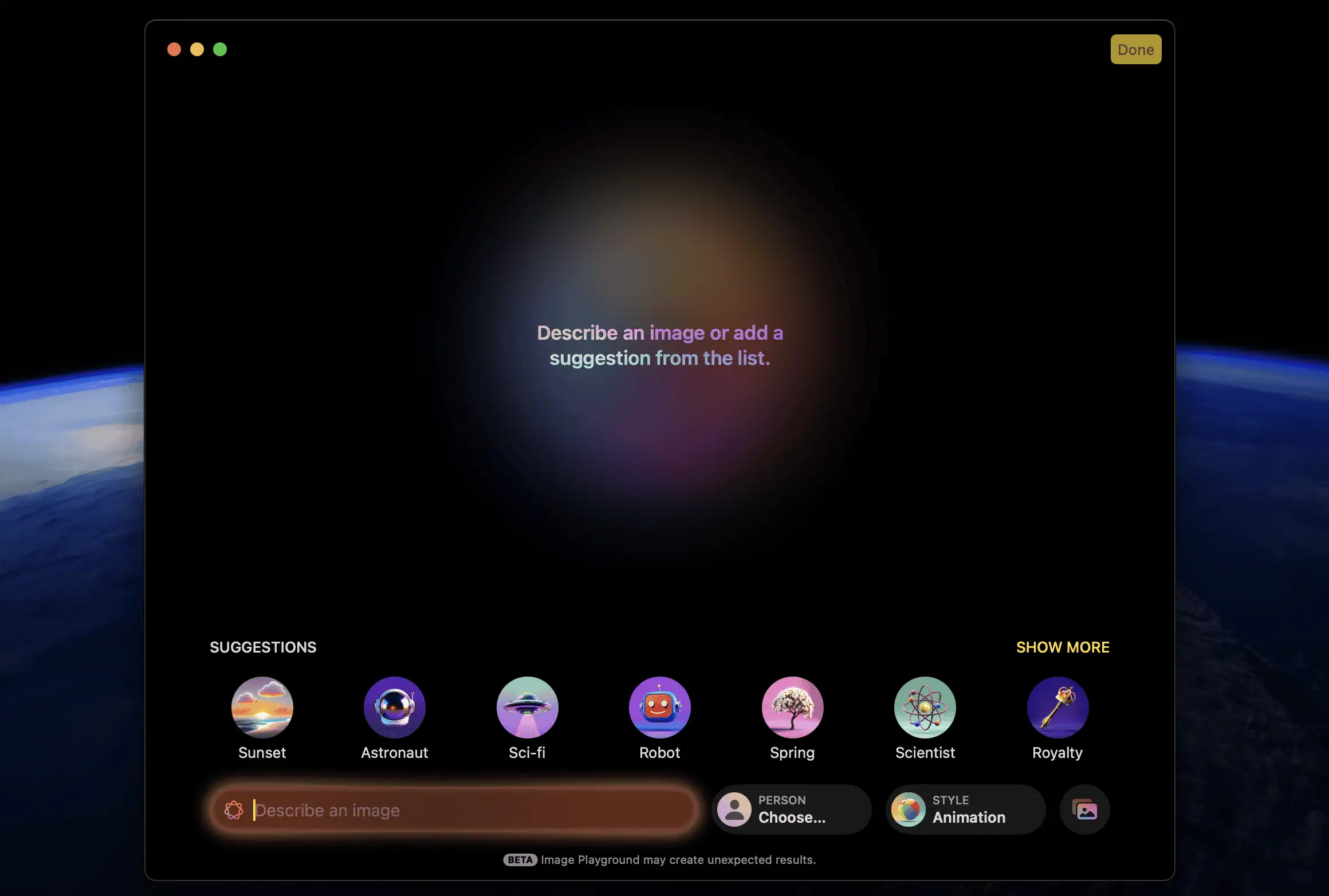
- You will find the suggestions that you can use for image generation.
- If you click on Person, then you can describe the appearance of the image generation.

- Click on Style, and you will get these options for image generation style

- Animations- Generates images in an animated style.
- Illustration- Generates an image as an illustration.
- Sketch- Generates an image as a sketch.
- If you want to upload a photo for reference, then click on the Photo icon as shown in the image below.

- Now, click on Choose Photo and select a photo on your Mac.

- You can even give a text prompt for image generation.

- Here are the results displayed by Image Playground.

Is It Worth It? (Pros and Cons)
Is Apple Intelligence worth all the hype? Well, despite all the features showcased by Apple for their AI, there are some pros and cons that you must know-
Pros
- Apple Intelligence uses on-device processing, so all your data is processed on your Mac (good for privacy).
- It works across all the Apple apps, including Mail, Notes, Messages, etc.
- Siri now works with text prompts along with voice prompts.
- You can create your images with Image Playground.
- ChatGPT integration makes Siri much smarter.
Cons
- Features like Image Playground are still in Beta, and can be unreliable.
- Though Siri has Onscreen awareness, it’s still a hit-and-miss case.
- The Clean Up tool for Photos may sometimes give unexpected results.
What’s Coming Next?
At WWDC 2025, Apple announced macOS Tahoe 26 with some new Apple Intelligence features, which include-
- Live Translation- Your Mac can now translate messages while in a conversation. Not only this, but if you are on a FaceTime call, then you will get the captions for the translation while on the call.
- Updated Genmoji- With the upcoming update, you will be able to use Genmoji to change existing emojis.
- Updated Image Playground- Image Playground will now have more new image styles, like oil painting and vector art. Apart from that, you will have more control over personal attributes. For instance, you will be able to change the expression in the image.
- Reminders- Apple Intelligence can now create reminders from notes and emails. It can also categorize the reminders so it’s easy to manage for the users.
- More Intelligence Shortcuts- Apple Intelligence is now integrated into the Shortcuts app. You will now be able to automate tasks in a better way with the Shortcuts app. For example, it can be used to automate summarizing text with Writing tools. You can even use it to transcribe a call recording and create a summary of it.
Conclusion
So, this was the complete guide on how to use Apple Intelligence on Mac. You can update your Mac to macOS Sequoia and begin using Apple Intelligence. With Apple Intelligence, you get a smarter Siri, helpful writing tools, powerful image generation, and productivity features baked right into your Mac.
Apple Intelligence can help you with all your tasks, be it generating images, writing an essay, or doing your office work. With a lot to discover and features that are yet to come, Apple’s AI is worth trying.
Got questions, feedback, or your own experience to share? Drop them in the comments — we’d love to hear how Apple Intelligence is working for you!
FAQs
1. Does Apple Intelligence work offline?
Because of on-device processing, many features like voice memo transcription work offline. But the features need to be downloaded before you can use Apple Intelligence.
2. Can I turn off specific features of Apple Intelligence?
Well, there’s a mixed answer to it. You can turn off ChatGPT integration for Siri, plus you can also uninstall Image Playground if you want it. But other features can’t be turned off; you will either have to turn off Apple Intelligence completely or only use the features you want to.
3. How does it compare to previous Siri?
Old Siri lacked features like Onscreen awareness, type to Siri, conversational context, etc. But you get all of it with the new, smarter Siri.
4. Do I need a paid ChatGPT to use Apple Intelligence?
ChatGPT Plus subscription is optional. You don’t even have to sign in to your ChatGPT account unless you want the history to be saved.
5. Is Apple Intelligence still in beta?
Yes, Apple Intelligence is still in beta. In fact, many of its features are unreliable and may not work as expected.
