
Whether you are a YouTuber or a Blogger, you need the right thumbnail to get more clicks on your content. If your thumbnail is attractive and gets the attention of the viewers, you are likely to get good engagement.
However, designing a thumbnail can be difficult. You need to understand the design tools, and then most difficult of all, you need to get hands-on experience with professional tools like Adobe Photoshop. Sounds a lot, right? This is where an AI thumbnail maker can help you with.
With AI, you can create YouTube thumbnails fast. It saves you time and the cost that you would have to spend on hiring a graphic designer (especially if you are just starting out).
In this article, we will guide you on how to create thumbnails using AI. We will discuss the best AI tools to generate thumbnails in a few minutes. So, let’s get started with it.
Tools You’ll Need
You don’t need a lot of tools to create AI thumbnails. All you need are these two tools, and that’s enough for the entire process:
1. ChatGPT
ChatGPT is an AI chatbot developed by OpenAI. It needs no introduction (only the person disconnected from the entire world won’t know about it).
So why do we need ChatGPT for thumbnails? We will use ChatGPT to generate prompts for the thumbnail generator.
In short, we will tell ChatGPT our content title and basic concept, and ask it to generate a prompt for an eye-catching thumbnail. We can also use an image for the reference if needed. It will implement our ideas for the thumbnail like the text we want, and the vibe we want in the thumbnail.
2. Ideogram AI
The next tool that we will use is Ideogram AI. It is an AI-powered image generation tool that you can use to generate your thumbnails with text prompts. You will enter the prompt generated by ChatGPT in this tool, and it will generate engaging thumbnails.
Ideogram AI gives you 12 credits a week, which means you can generate 12 images for free. With Ideogram, you can create thumbnails for both short and long videos. Going ahead in this guide, we will discuss how you can use these tools to generate thumbnails.
Note- While the official site says the free plan offers 10 credits, but in my testing I got 12 credits every week.
Create Thumbnail Using AI: Step-by-Step Guide
Creating a thumbnail using AI is easy. All you have to do is generate a prompt using ChatGPT and feed that prompt to Ideogram, and you will have your free AI thumbnail ready. Here’s a step-by-step guide to do so:
Step 1: Plan Your Thumbnail Concept
First, you need to plan the concept of your thumbnail. Suppose, let’s say, I want to make a thumbnail on the topic- ‘How to Record Gaming Videos on PC?’
So, first, we need to identify the purpose of the thumbnail. Our topic is a how-to guide, so our video will be informative. So our thumbnail should depict it, plus it should be engaging to get views.
Next, we need to figure out the elements in the thumbnail. For instance, we can include:
- A monitor with a game
- The logo of the tool (For example, OBS Studio) we will use to record game videos
- Text like- Record Videos Free
You can also check out other thumbnails on similar topics and download them for reference. Here’s how:
- Launch the browser on your PC, and head over to YouTube.
- Now, here, search for your topic. For example, our topic was ‘How to Record Gaming Videos on PC’, so we will search for it.

- You will see all the related results. Here, look for the eye-catching YouTube Thumbnail.
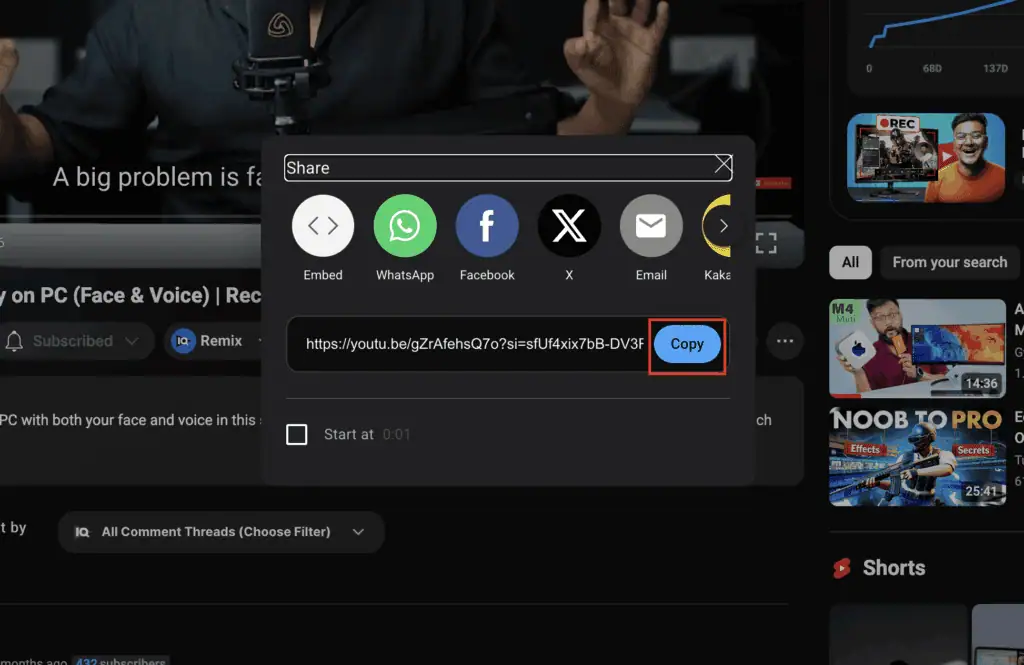
- After this, click on the Share button.

- Now, click on Copy to copy the link.
- Next, we need to download the thumbnail.
- In a new tab, open this YouTube Thumbnail Downloader.
- In the text field, paste the link of the video you copied, and click on Get Thumbnail Images.

- After this, click on Download HD Thumbnail Image to download the thumbnail.

- You can download 2-3 more thumbnails to use for reference later.
Step 2: Use ChatGPT to Generate a Prompt for Ideogram
Now the next step is to use ChatGPT to generate the prompt for Ideogram. Follow the steps given below to do so:
- On your PC’s browser, head over to the ChatGPT website.
- Here, click on the Log In button in the top right corner.

- Enter your login credentials and sign in to your account.
- Now you will have to ask ChatGPT to generate a prompt for Ideogram. For this, enter this prompt in ChatGPT-
- If you want to upload the reference thumbnail and want a similar thumbnail, then upload the image and enter this prompt in ChatGPT:
‘I am making a video on how to record gaming videos on PC. I want to generate a thumbnail using Ideogram. So, generate a prompt in bullet points for an attractive, clickworthy thumbnail. Include these elements- Monitor with a game and logo of OBS studio. You can use this image for reference, but I want you to make it unique and engaging.’
- If you want ChatGPT to generate a thumbnail prompt of its own with no image reference, then enter this prompt:
‘I am making a video on how to record gaming videos on PC. I want to generate a thumbnail using Ideogram. So generate a prompt in bullet points for an attractive, clickworthy thumbnail. Include these elements- Monitor with a game and logo of OBS Studio. Make the thumbnail engaging for more clicks.

- This will give you the prompt that you can use to generate images using Ideogram.
- Here is the prompt generated by ChatGPT. We will later use it in Ideogram.

Note– Here the title and elements will differ as per your video topic. Your prompt need not be like the one we mentioned above. In your prompt, you can include other details you want to include in your thumbnail.
Step 3: Generate a Thumbnail with Ideogram
Once you have generated the prompt using ChatGPT, you need to feed it to AI image generator for thumbnail creation. You can follow the steps given below to generate the thumbnails using Ideogram:
- Open the Ideogram website on your PC’s browser.
- When you launch the website, you will see two options-
- Continue with Google
- Continue with Apple
- You can continue with either of the above two options to login to your account. For now, let’s go with Continue with Google.

- Now, select your Google account to continue.
- On the main screen, you will see the text field to enter the prompt. Paste the prompt generated by ChatGPT here.

- After this click on this Aspect Ratio button.

- Here you will see various options as shown in the image below.

- Now you will have to select the dimension of the image.
- If you want to generate a thumbnail for long videos, then select 16:9, and if you want a thumbnail for shorts, then select 9:16.
- Here, I want a thumbnail for a long video, so I am selecting 16:9.

- After this, click on this option, which says 3.0 Default x 4.

Note- Here 3.0 Default means the AI image model, and x4 means the number of images that will be generated in one go.
- After this, select the AI image model from:
- 3.0 (latest) – This is the most advanced model, and selected by default.
- 3.0 (March 26) – Select this model, if you want more contrast and details in the images.
- 2.0– This model puts realism into the design.
- 2a – Select this model if you want the fastest creation time.
- 1.0 – This model is best for creative art.
- For now, let’s go with the default model, i.e., 3.0 (Latest).
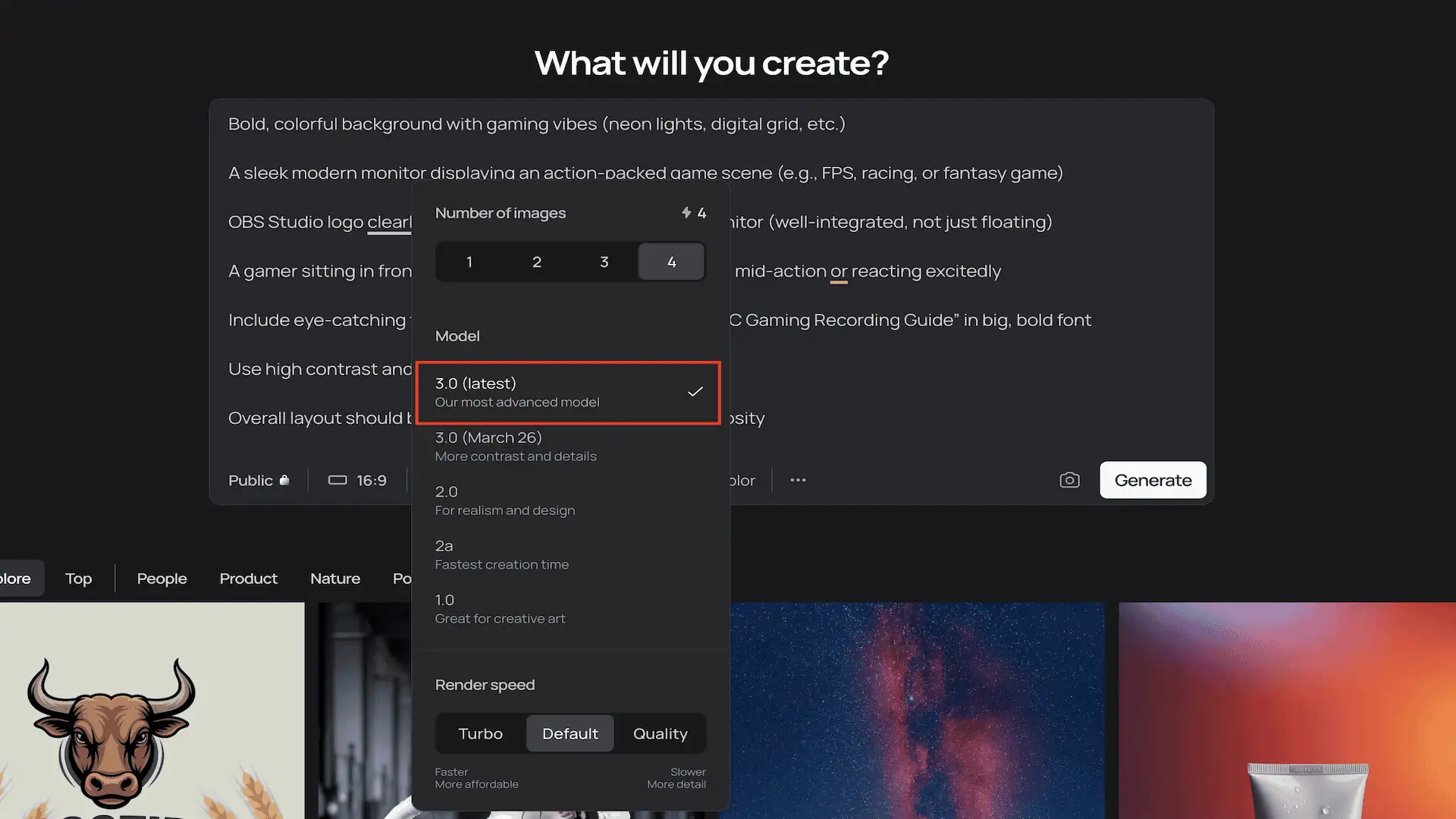
- Next, select the Render Speed from:
- Turbo– This generates images faster, but the details will be less.
- Quality– This generates images slower, but with more details.
- Default– Maintains the balance between Turbo and Quality.
- For this guide, we are selecting Default, but you can go with your own preference.

- After this tap on MP. You will get these options:
- Auto
- On
- Off
- MP means magic prompt (it enhances your initial prompt). For better image generation, leave it to On.

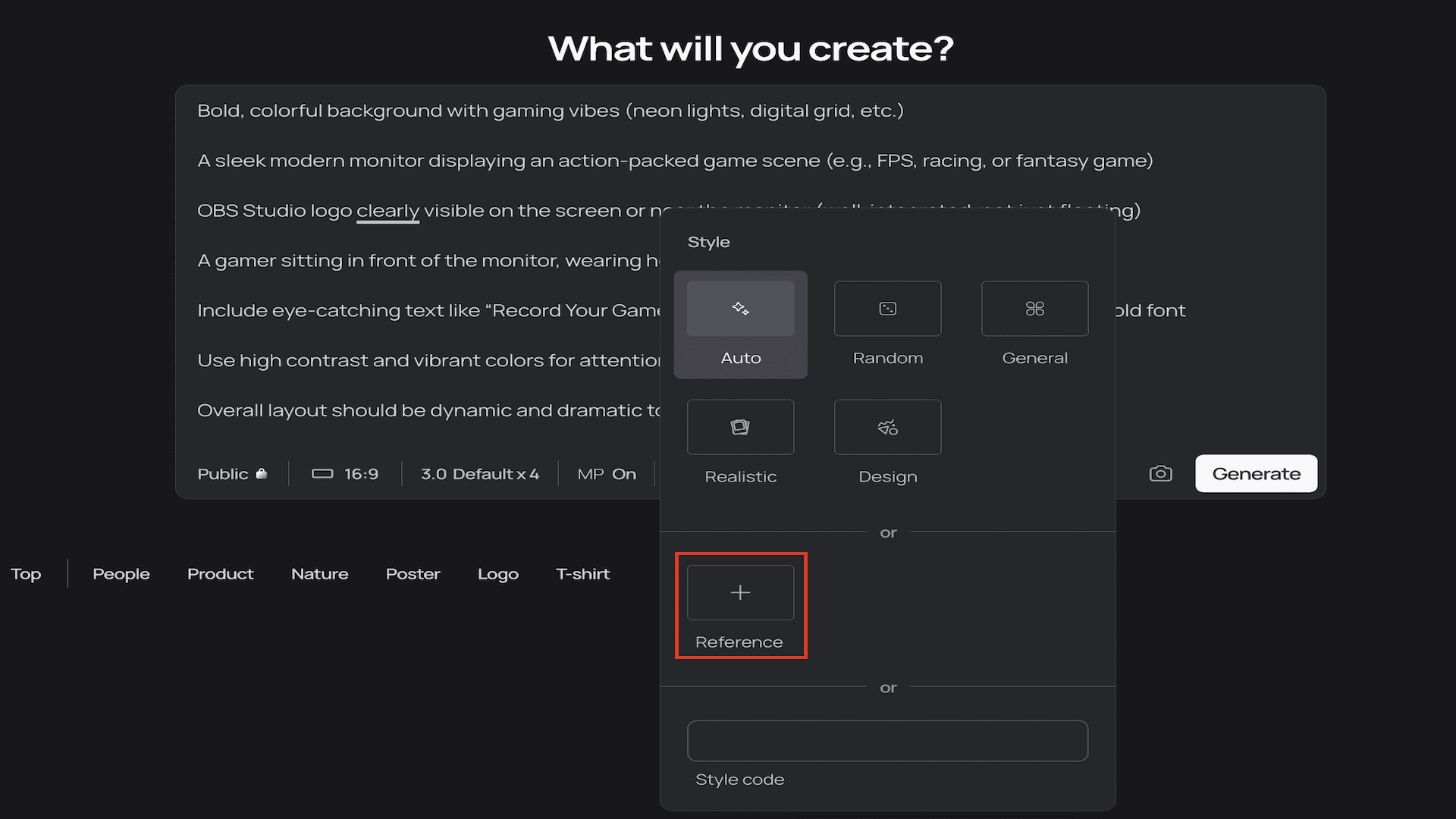
- Next, click on Style. Now select from the following options:
- Auto
- Random
- General
- Realistic
- Design
- From the above options, select Auto.

- You can even upload the image/thumbnail for reference, by clicking on the ‘Reference’ option.
- Once you have done this, click on Generate and this will generate the thumbnail.

- Here are the thumbnails it generated.

Step 4: Edit the Image(Optional)
Once Ideogram generates the thumbnail, you can edit it if you want to. For this, follow these steps:
- Click on the image you prefer the most.

- Now you will see these options in the image below.
- Remix – You can edit the magic prompt for better image generation.
- Upscale (Only with a premium account) – This option will enhance the quality of the image.
- Describe– This lets you change your original prompt used for image generation.
- Style Reference– You can change the style of the image.
- Open in Canvas (Only with premium Account)– Opens the image in Canvas for editing.
- Replace BG (Only with premium account)– Changes the background of the image.
- Once you make all the changes, click on the Download button, and this will download the thumbnail in PNG format.

Tips for Effective YouTube Thumbnails
AI can generate thumbnails, but not every thumbnail will be as per your needs. You need to command AI thumbnail maker to generate the thumbnails that work well for you. For that, you need to keep these tips in mind:
- Make sure to ask ChatGPT to generate a prompt in bullet points.
- In your prompt, enter the emotions you want to portray in the thumbnail (For example, excited gamer).
- Do not include too many elements in the prompt, else it will clutter the image.
- Make sure to specify whether you need the thumbnail for a long video or a short video.
- Ensure the text in the image is short and bold.
- Make sure the subjects stand out in the thumbnail.
- Use a good thumbnail for the reference.
- Change the styling as per your preference.
- AI thumbnail maker gives you limited credits, so make sure you lower done the image quantity so you can experiment more with the designs.
Should You Use ChatGPT + Ideogram for Thumbnail Generation?
ChatGPT + Ideogram is the best combination that you can use for thumbnail generation. But yes, like everything, it has its own pros and cons, which we have discussed below:
Pros:
- You can generate YouTube thumbnails with no prior design experience.
- It takes a few minutes to generate images.
- Creates well-designed high-quality thumbnails that grab attention and drive high click-through rates.
- You can try out different styles of thumbnails.
- You can even have styles similar to other thumbnails.
Cons:
- May need multiple attempts to get the ideal thumbnail
- Limited credits with the free account.
Final Thoughts
So that’s how you can create thumbnails using AI. If you don’t have any prior experience in graphic design and you are just starting with your social media journey, then this option is the best for you.
With AI tools, you can create professional-looking thumbnails in seconds. You can avoid the hassle of hiring a graphic designer or investing your time in learning tools like Photoshop. Plus, you can experiment with different thumbnail styles until you find the one that’s perfect for you.
Many creators use AI for their thumbnails and streamline their workflow, and you can try it too. Have you ever created thumbnails using AI? Let us know how you make your thumbnails—or share your results in the comments. We’d love to see what you come up with!
FAQs
1. Is Ideogram AI Free?
Yes, Ideogram is a free AI thumbnail-maker tool. You can create a free account on Ideogram. With a free plan, you will get 12 weekly credits for free. 1 credit = 1 image, so you can generate 12 free images per week. It’s great for content creators with no design skills.
2. Can I Customize the Thumbnails Generated by Ideogram?
Yes, you can open the image generated by Ideogram in the canvas and edit it as per your requirements.
3. What Is the Right Thumbnail Size for YouTube?
For regular YouTube videos, use a 16:9 aspect ratio. For YouTube Shorts, use the aspect ratio 9:16. Every AI YouTube Thumbnail maker, including Ideogram, has support for various aspect ratios.
4. How do I Get Better Results from ChatGPT for Thumbnail Prompts?
Be clear and descriptive. Include your video title, desired elements, mood, and any references. Bullet points give better structured prompts for thumbnail generation, so use them as well.
5. Can I Use AI-Generated Images on YouTube?
Tools like Ideogram generate professional thumbnails that grab attention. You can use AI-generated Thumbnails anywhere, including YouTube. So, you need not worry about having a copyright claim or plagiarism when using such thumbnails.
6. Can you select a Template from Thumbnail Design in the Ideogram?
You can personalize your YouTube Thumbnails by giving the right prompt. But there’s no option to select the template. It provides you with various customization options. For instance, you can change the style, color palette, and include a reference image.
7. Do you Need Designing Skills to Create Thumbnails Using the AI?
There are no design skills needed to create AI thumbnails from scratch. Tools like Ideogram allow you to create attention-grabbing thumbnail for YouTube.
8. How Much Time Does It Take to Generate AI Thumbnails?
With AI, you can create thumbnails in no time. With the free plan of Ideogram, it takes 3-4 minutes to generate the thumbnail. Overall, Ideogram saves time that you would have spent on ideating and manually designing your thumbnail.
9. Are There Any Stock Images on Ideogram?
There aren’t any stock images on Ideogram that you can use for AI thumbnail generation. Though the images generated by other people are available.


